How to Compress & Convert Images Without Losing Quality in 2026
Learn practical, verifiable techniques to resize, compress, and convert web images into WebP and AVIF without sacrificing visual clarity.
Read guideFREE ONLINE IMAGE CONVERTER
Processing: Server-processed (Encrypted HTTPS)TECHNICAL SPECIFICATIONS & LIMITS
Below are the verified technical parameters, batch limits, and processing details for BMP to JPG:
| Specification | Technical Behavior |
|---|---|
| Processing Architecture | Server-processed via encrypted HTTPS API (ephemeral memory, deleted within 30 minutes) |
| Accepted Input Formats | .BMP |
| Output Format | JPEG (.jpg, 24-bit RGB) |
| Batch Processing Limit | 10 files per batch |
| Configurable Parameters | Automatic preset optimization |
| Transparency / Alpha Handling | Flattened onto solid background (JPEG does not store an alpha channel) |
SMART COMPRESSION
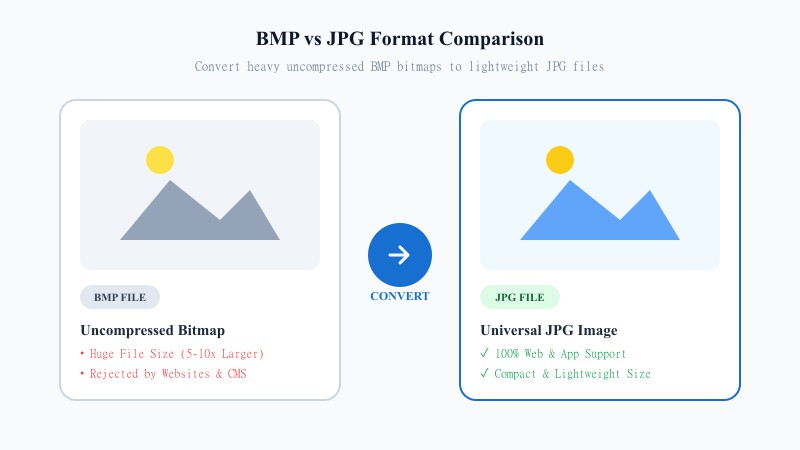
BMP (Bitmap) is an old Windows format that stores images with little to no compression. That means the picture quality is great, but the file size is often 5-10x bigger than it needs to be. A single BMP screenshot can weigh several megabytes when the same image as a JPG would be a fraction of that.
JPG, on the other hand, is the format the internet actually runs on. It's compressed, universally supported, and every browser, phone, social platform, and CMS accepts it without complaint. So when you convert BMP to JPG, you're basically translating an old, clunky format into one that's lightweight and ready to use anywhere — email, websites, product listings, portfolios, you name it.
EASY 3-STEP PROCESS
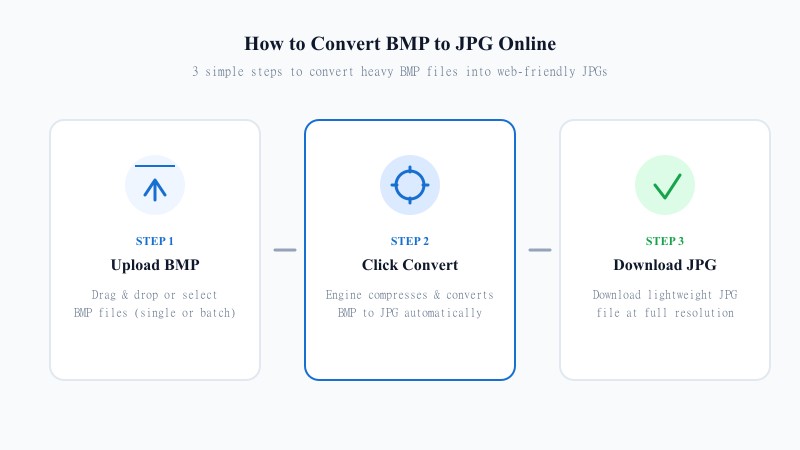
You don't need Photoshop, GIMP, or any app installed on your computer. Here's how to convert BMP to JPG without any software, online from any device:
HIGH RESOLUTION
Here's the honest part: JPG is a lossy format, meaning it compresses the image by discarding some data you probably won't notice, but it's there. If you're converting a photo or screenshot, this is barely visible at normal compression levels — you'd have to zoom in pretty hard to spot it. Our converter uses a high-quality compression setting by default, so you get the smaller file size of JPG without the blurry, artifact-heavy look of an over-compressed image.
One thing worth knowing: JPG doesn't support transparency. If your BMP somehow includes an alpha channel (rare, but possible), that transparency will be flattened to a solid background during conversion. For most BMP files — screenshots, scans, photos — this isn't an issue at all since BMPs are typically already opaque.
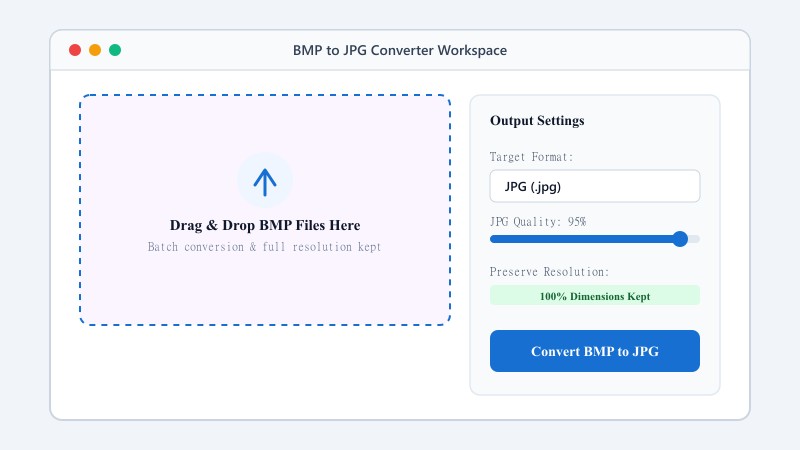
As for resolution, don't worry — converting BMP to JPG while keeping the same resolution is the default behavior. The tool doesn't resize or crop your image; it just re-encodes the pixel data into JPG format at full size.
USE CASES
FORMAT COMPARISON
Neither format is 'better' universally — they serve different purposes. BMP preserves every bit of image data with zero compression, which is great for certain editing workflows but terrible for file size and web use. JPG trades a tiny bit of quality for a massive reduction in file size and near-universal compatibility. For everyday use — sharing, uploading, emailing — JPG wins almost every time.
| Feature / Aspect | BMP Format (Bitmap) | JPG Format (Universal) |
|---|---|---|
| File Size & Compression | Uncompressed (5-10x Larger) | High JPEG Compression (Lightweight) |
| Web & App Acceptance | Rejected by most sites & CMS | 100% Accepted across Web & Mobile |
| Device Support | Legacy Windows format | Universal across all Operating Systems |
| Image Quality | Lossless / Raw Pixel Data | High Quality with Minimal Visual Compression |
| Transparency Support | Rare Alpha Channel (Uncompressed) | Opaque Solid Background (White) |
| Best Use Case | Raw pixel editing & Windows screenshots | Email, Web Uploads, E-commerce & Sharing |
100% FREE ONLINE TOOL
REFERENCE MATRIX
| Feature | BMP Format | JPG Format |
|---|---|---|
| Compression | Uncompressed raw bitmap | Efficient lossy compression |
| File Size | Extremely large (Megabytes) | Lightweight (Kilobytes) |
| Web Usability | Not suitable for web pages | Web standard for fast page loading |
Questions and answers
Yes, completely free with no hidden costs or subscriptions.
Some compression happens since JPG is a lossy format, but at our default quality setting, the difference is virtually invisible to the eye.
No. Everything happens online — no downloads required.
Yes. Your files aren't stored or shared; they're processed and then deleted.
Yes, batch conversion is supported — upload several files and convert them together.
Yes, the tool doesn't resize your image; dimensions stay exactly the same.
JPG doesn't support transparency, so any transparent areas will convert to a solid (usually white) background.