Quick Answer (52 words):
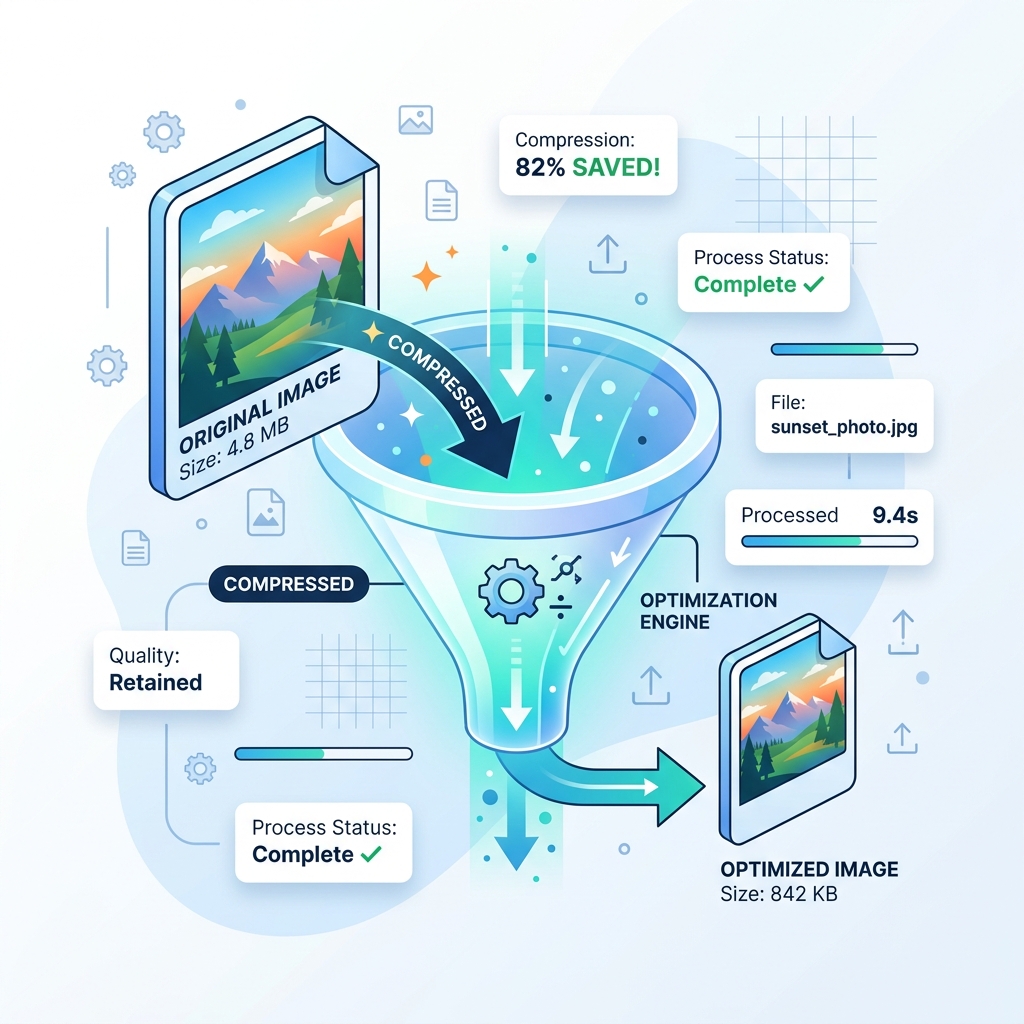
Efficient bulk image processing combines exact pixel resizing, format conversion (to WebP), and byte-budget compression in a single workflow. On Toolcolabs, JPG/PNG-to-WebP conversions run 100% locally in your browser via HTML5 Canvas, while multi-file batch compression and target-KB resizing run over encrypted HTTPS up to 10 files per batch.
Why Manual One-by-One Image Editing Slows Publishing
Whether you are preparing product gallery photos for an e-commerce store, formatting real estate listings, or uploading employee headshots, modern cameras routinely produce 8 MB to 20 MB image files. Uploading those raw assets directly to a CMS slows down page loads and hurts mobile Largest Contentful Paint (LCP).
Opening each file individually in a desktop photo editor to change pixel dimensions and export quality takes unnecessary time. A structured batch pipeline lets you process up to 10 images per run with consistent quality settings.
Choosing the Right Architecture: In-Browser Canvas vs. Encrypted API
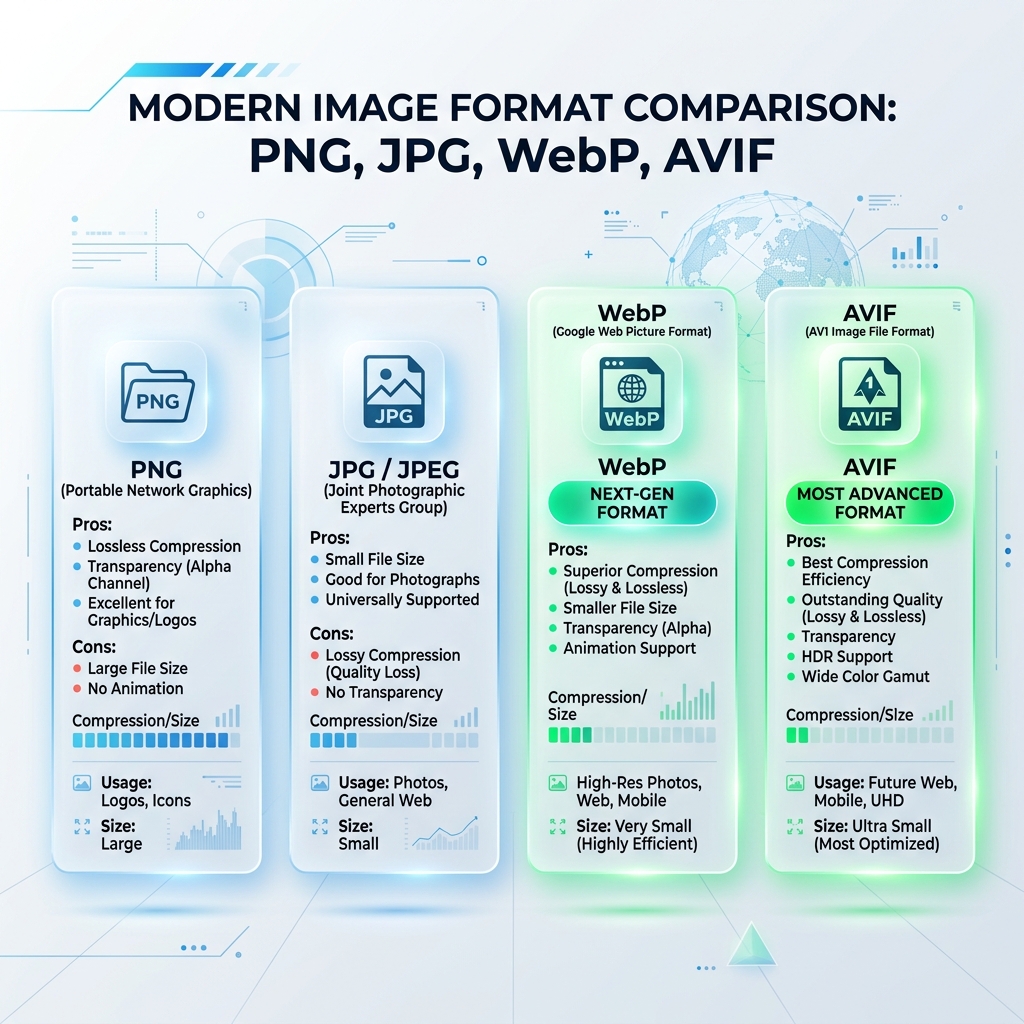
Different image operations have different computational requirements. Toolcolabs uses a transparent hybrid model so you always know how your batch is handled:
| Workflow Step | Toolcolabs Utility | Processing Mode | Batch Capacity |
|---|---|---|---|
| Convert JPG/PNG to WebP | JPG to WebP / PNG to WebP | 100% In-Browser (HTML5 Canvas) | Up to 10 files (15 MB each) |
| Scale Pixel Dimensions | Resize Image | Server-Processed (Encrypted HTTPS) | Up to 10 files (15 MB each) |
| Multi-File Lossy Compression | Bulk Compression | Server-Processed (Encrypted HTTPS) | Up to 10 files (15 MB each) |
| Strict KB Byte Ceiling | Compress to Target Size | Server-Processed (Encrypted HTTPS) | Up to 10 files (15 MB each) |
Building a Repeatable 3-Step Content Pipeline
- Standardize Pixel Widths First: Define maximum pixel dimensions for each template on your site (for example,
1200×630 pxfor blog headers and1000×1000 pxfor product squares) and scale your batch with Resize Image. - Convert to WebP Locally When Possible: Drop your resized JPG or PNG assets into our in-browser JPG to WebP or PNG to WebP tool at 80–85% quality for instant client-side encoding.
- Enforce Byte Caps for Portals & Thumbnails: When uploading to forms with strict byte limits, run the batch through Compress to 100KB or Compress to 200KB.
Frequently Asked Questions (FAQs)
Which Toolcolabs batch tools run in the browser versus on the server?
Our JPG to WebP and PNG to WebP converters run 100% locally inside your browser using the HTML5 Canvas API (zero server uploads). Our Bulk Compression, Resize Image, and Target-KB tools process batches of up to 10 images over an encrypted HTTPS connection via our dedicated optimization API.
Does batch compression noticeably degrade photo quality?
When set to a quality level between 75 and 85, lossy quantization removes redundant chroma information while keeping edges and skin tones natural, typically reducing file weight by 50% to 70%.
How does bulk image resizing improve Core Web Vitals?
Downscaling oversized camera photos (such as 4000×3000 px) to match the actual CSS container width (such as 800×600 px or 1200×630 px) eliminates millions of unnecessary pixels, reducing network transfer time and improving Largest Contentful Paint (LCP).
How many files can I process at once on Toolcolabs?
Each tool supports up to 10 files per batch (up to 15 MB per file) so browser memory and network requests remain fast and reliable across desktop and mobile devices.