Open the rotator tool
Launch the rotator tool online from any device.
FREE ONLINE IMAGE ROTATOR
Processing: Server-processed (Encrypted HTTPS)TECHNICAL SPECIFICATIONS & LIMITS
Below are the verified technical parameters, batch limits, and processing details for Rotate Image:
| Specification | Technical Behavior |
|---|---|
| Processing Architecture | Server-processed via encrypted HTTPS API (ephemeral memory, deleted within 30 minutes) |
| Accepted Input Formats | JPG, JPEG, PNG, WEBP |
| Output Format | Preserves source image format (JPG, PNG, or WebP) |
| Batch Processing Limit | 10 files per batch |
| Configurable Parameters | Clockwise angle (default: 90) |
| Transparency / Alpha Handling | Preserved when output format supports alpha (PNG, WebP, ICO) |
ORIENTATION CORRECTION
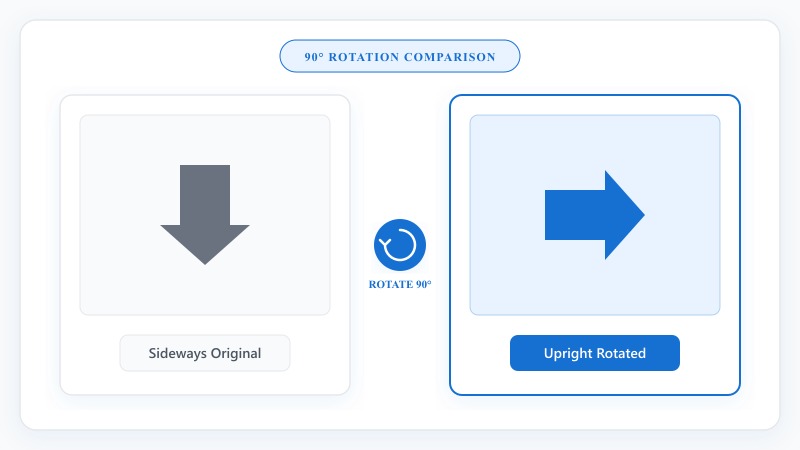
Orientation issues happen more often than you'd think. Phones sometimes save photos with incorrect rotation metadata, so an image that looks right on your phone shows up sideways once uploaded elsewhere. Scanned documents can come out flipped depending on how the paper was fed through the scanner. And sometimes you just shot a photo the "wrong" way and need to fix it after the fact.
Whatever the cause, rotating an image corrects the orientation without needing to reshoot or rescan anything. It's a two-second fix once you know where to do it — the tricky part is usually just not wanting to open a full editing program for something this simple.
NO PHOTOSHOP REQUIRED
That covers how to rotate a photo on a computer without software — everything happens online, no separate app needed, and it works the same whether you're rotating JPG images online, PNG images online, or any other supported format.
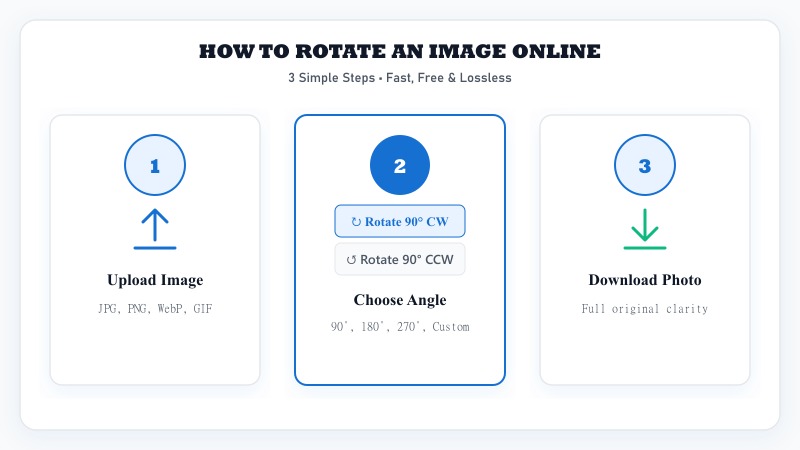
Launch the rotator tool online from any device.
Select JPG, PNG, WebP, or GIF from your phone, tablet, or desktop.
Select clockwise, counterclockwise, 90°, 180°, 270°, or a custom degree.
Preview the result instantly on the canvas to confirm orientation.
Download your correctly-oriented image in full resolution.
STANDARD & CUSTOM ANGLES
DIRECTION GUIDE
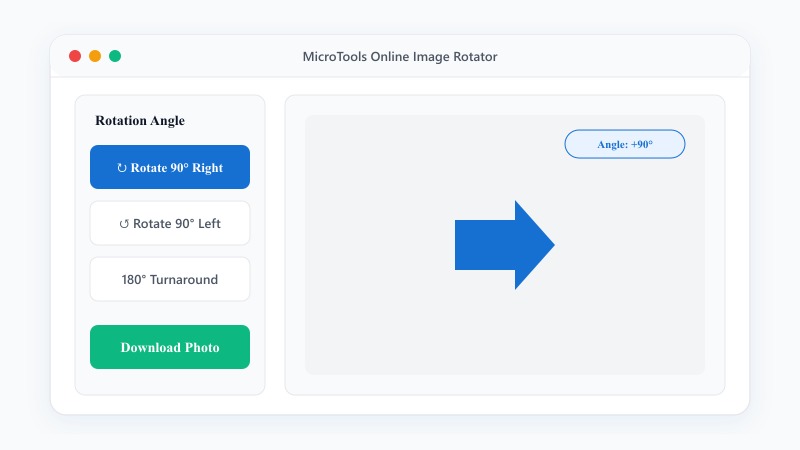
How to rotate a picture clockwise: the image turns in the same direction a clock's hands move — top goes right, right goes down, and so on.
How to rotate a photo counterclockwise: the image turns the opposite direction — top goes left instead. Getting these mixed up is an easy mistake, so most tools let you preview the rotation before finalizing it, which is worth doing if you're not sure which direction you need.
BATCH PROCESSING
This is especially useful for correcting a batch of scanned pages that all came out the same way due to how they were fed through a scanner.
Upload several images together rather than individually.
Select the rotation direction or angle that applies to the batch.
The tool rotates every image in one pass.
Download files individually or as a complete batch.
LOSSLESS ROTATION
No — rotating an image without losing quality is the default behavior for any standard 90, 180, or 270-degree rotation. These are clean, exact rotations that simply reposition the existing pixels without needing to recalculate or estimate any new pixel values, so there's no quality loss involved at all.
Custom angle rotations (anything that isn't a multiple of 90 degrees) work a little differently — since the image is being turned to an angle that doesn't align with the original pixel grid, some interpolation is needed to fill in the new edges, and the image canvas often needs to expand slightly to fit the rotated shape without cropping anything out. This is standard for any custom-angle rotation, and the visual impact is generally minimal for small adjustments, like straightening a slightly tilted photo.
PRACTICAL USES
FREE & UNLIMITED
REFERENCE MATRIX
| Rotation Angle | Visual Result | Common Problem Solved |
|---|---|---|
| 90° Clockwise | Right turn landscape to portrait | Fix phone photos shot sideways |
| 90° Counter-Clockwise | Left turn orientation shift | Correct upside-left portrait scans |
| 180° Flip | Complete upside-down flip | Fix camera inverted photos |
Questions and answers
Yes, completely free with no hidden costs.
No, standard 90, 180, and 270-degree rotations don't affect quality at all. Custom angle rotations involve minor interpolation, but the effect is minimal for small adjustments.
JPG, PNG, WebP, and GIF are all supported.
Yes, batch rotation is supported for handling several images together.
No, everything happens online without installing any software.
Upload it to the tool and rotate it 90 degrees in whichever direction corrects the orientation — preview the result to confirm before downloading.
Yes, files are processed securely and aren't stored or shared afterward.