Open the flip tool
Launch the flip tool online from any device.
FREE ONLINE IMAGE FLIPPER
Processing: Server-processed (Encrypted HTTPS)TECHNICAL SPECIFICATIONS & LIMITS
Below are the verified technical parameters, batch limits, and processing details for Flip Image:
| Specification | Technical Behavior |
|---|---|
| Processing Architecture | Server-processed via encrypted HTTPS API (ephemeral memory, deleted within 30 minutes) |
| Accepted Input Formats | JPG, JPEG, PNG, WEBP |
| Output Format | Preserves source image format (JPG, PNG, or WebP) |
| Batch Processing Limit | 10 files per batch |
| Configurable Parameters | Automatic preset optimization |
| Transparency / Alpha Handling | Preserved when output format supports alpha (PNG, WebP, ICO) |
ORIENTATION & REFLECTION
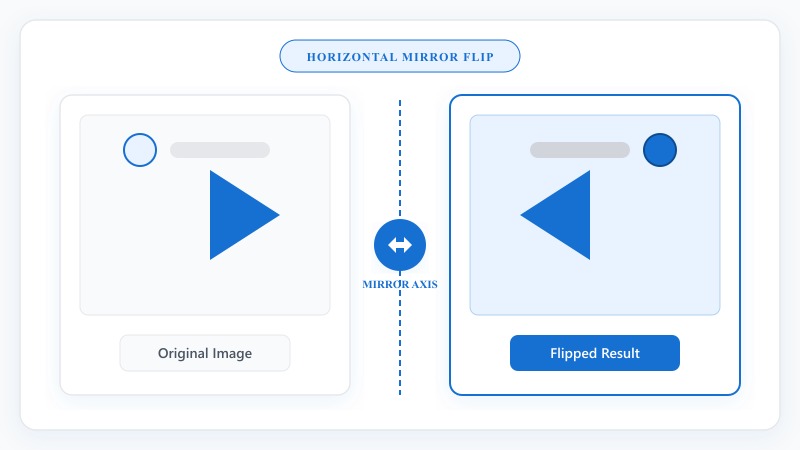
Flipping an image reverses it along an axis — horizontally (left becomes right) or vertically (top becomes bottom) — without rotating or distorting anything. It's different from rotation, which turns an image around a center point; flipping creates a mirrored version instead.
This comes up more than people expect. Selfies taken on a front camera are usually mirrored compared to how they'll display once uploaded normally, so flipping corrects that so text or logos in the background read the right way round. Scanned photos or documents sometimes come out reversed depending on the scanner or how the original was placed. And sometimes you just need a graphic or icon to face the opposite direction for a design layout.
NO PHOTOSHOP REQUIRED
That's how to flip JPG image online or flip PNG image online — the process is identical regardless of format, since the tool handles the conversion automatically behind the scenes.
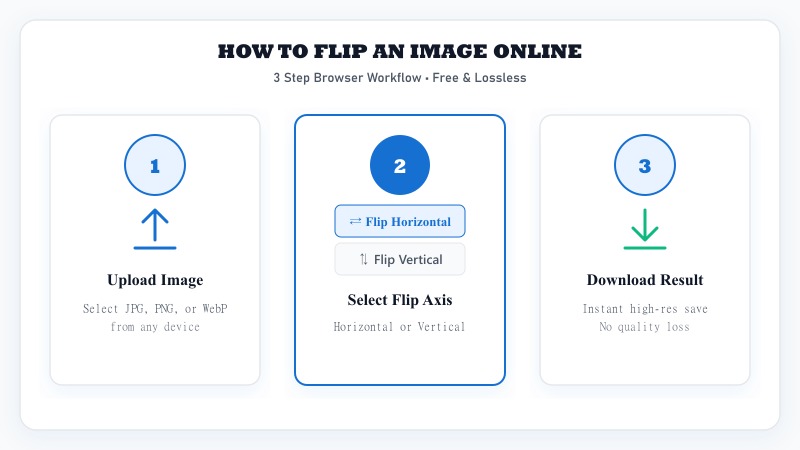
Launch the flip tool online from any device.
Select JPG, PNG, or WebP from your phone, tablet, or desktop.
Select horizontal or vertical flip option.
Preview the result to confirm it's flipped the way you want.
Download your flipped image in full resolution.
FLIP AXIS GUIDE
MIRROR EFFECT
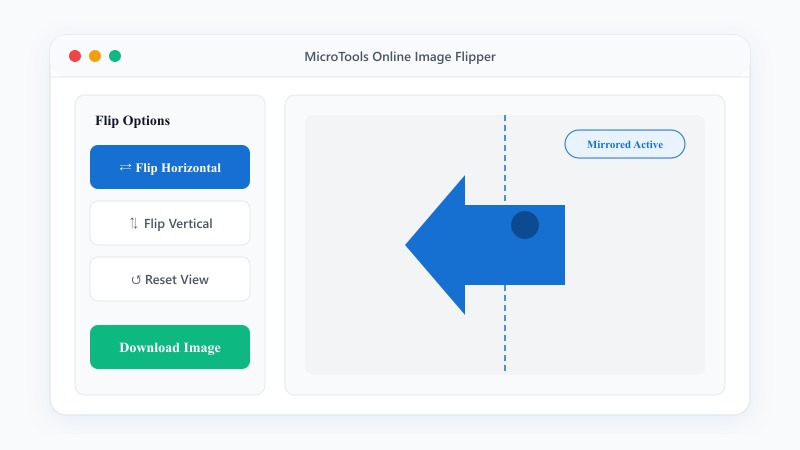
How to create a mirror image online or how to make a mirrored photo — this is really just another way of describing a horizontal flip in most everyday cases, since that's the direction people usually mean by "mirrored." The tool applies the same reflection effect you'd see looking into an actual mirror, reversing left and right while keeping the image otherwise identical.
BATCH PROCESSING
Useful for correcting a batch of scanned documents that all came out mirrored the same way, or standardizing a set of selfies before uploading them somewhere.
Upload several images together instead of one at a time.
Select horizontal or vertical flip — it applies across the whole batch.
The tool flips every image in one pass.
Download files individually or as a complete batch.
LOSSLESS FLIPPING
No. How to flip a photo without losing quality — flipping doesn't compress or alter any pixel data at all; it simply repositions existing pixels in a mirrored arrangement. There's no interpolation, no recalculation, no data loss involved, unlike some rotation angles that need to estimate new pixel values. A flipped image is exactly as sharp as the original, just facing the other direction.
PRACTICAL USES
FREE & UNLIMITED
REFERENCE MATRIX
| Flip Orientation | Mirror Axis | Best Use Case |
|---|---|---|
| Horizontal Flip | Left-to-Right Mirroring | Fix selfie camera mirror inversion |
| Vertical Flip | Top-to-Bottom Inversion | Correct upside-down reflection photos |
| Combined Flip | Both Axes Inversion | Creative symmetry & pattern design |
Questions and answers
Yes, completely free with no hidden costs.
Flipping mirrors the image along an axis (left-right or top-bottom), while rotating turns the image around a center point. They produce different results even at similar-looking angles.
No, flipping simply repositions existing pixels without any data loss, so quality stays exactly the same.
Yes, all three formats are supported.
Yes, batch flipping is supported for handling several images together.
No, everything happens online without installing any software.
Upload it and apply a horizontal flip, which reverses left and right back to how it would naturally appear to others.