Open the background editor tool
Launch the free tool online from any device.
FREE ONLINE AI BACKGROUND EDITOR
Processing: Server-processed (Encrypted HTTPS)TECHNICAL SPECIFICATIONS & LIMITS
Below are the verified technical parameters, batch limits, and processing details for Blur Background:
| Specification | Technical Behavior |
|---|---|
| Processing Architecture | Server-processed via encrypted HTTPS API (ephemeral memory, deleted within 30 minutes) |
| Accepted Input Formats | JPG, JPEG, PNG, WEBP |
| Output Format | Preserves source image format (JPG, PNG, or WebP) |
| Batch Processing Limit | 10 files per batch |
| Configurable Parameters | Blur radius (1–50, default 15) |
| Transparency / Alpha Handling | Preserved when output format supports alpha (PNG, WebP, ICO) |
BACKGROUND EDITING OVERVIEW
A background does a lot of quiet work in a photo. Change or blur it and the whole image feels more polished, even if nothing about the subject itself changed. There are two main approaches depending on what you need:
Changing the background replaces it entirely — swap a messy room for a plain white backdrop, put a product on a branded color, or drop your subject onto an entirely different scene. Useful when you need control over exactly what's behind your subject, like for product listings or ID photos with strict background requirements.
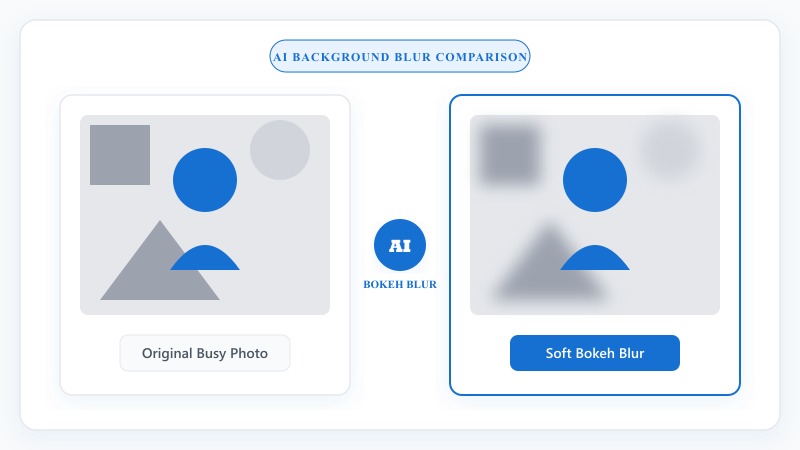
Blurring the background keeps the original setting but softens it, drawing attention to your subject the way a professional camera lens naturally does. This is the effect you see in portrait photography — sharp subject, soft blurred surroundings — often called a bokeh effect.
Both rely on the same underlying AI technology: identifying exactly where your subject is in the photo, separate from everything around it.
NO PHOTOSHOP REQUIRED
That covers how to change photo background to white, how to change background to black, or swapping in any other solid color — same process, just a different choice in step 3. For replacing the background with another photo entirely, upload that second image when prompted, and the tool composites your subject onto it.
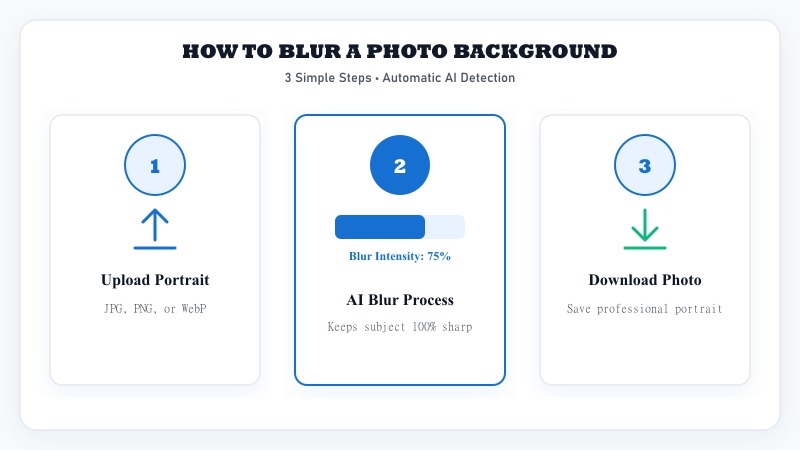
Launch the free tool online from any device.
Select your photo from any phone, tablet, or desktop.
Select a solid color, transparent background, or upload a replacement image.
The AI detects your subject automatically and replaces everything around it.
Save your high quality updated photo instantly.
PORTRAIT BOKEH EFFECT
This is how to blur the background without blurring the subject — the key difference between this and a basic blur filter. A regular blur filter applied to a whole image blurs everything evenly, subject included. AI background blur specifically detects where your subject is and leaves it untouched, applying blur only to everything else, which is exactly what creates that natural bokeh-style depth effect without ruining the main focal point of the photo.
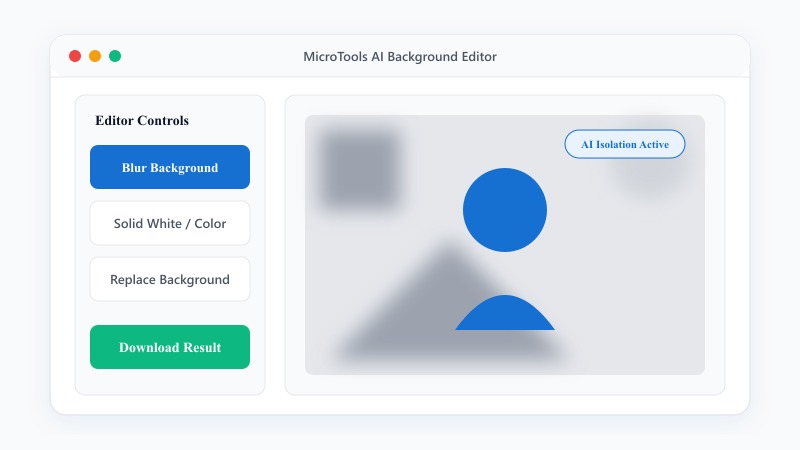
Open the tool and select the image you wish to edit.
Choose the background blur processing option.
Set a subtle or strong bokeh blur level according to your preference.
The AI applies blur only to the background, keeping your subject sharp.
Save your photo with a professional shallow depth-of-field effect.
COMMON USE CASES
QUALITY & PRECISION
The subject itself stays untouched throughout — AI background editing doesn't apply any quality loss or compression to your subject. What changes is entirely in the background, whether that's a full replacement or a blur effect.
For background blur specifically, this is a fairly gentle effect from a technical standpoint — it's a filter applied to detected background pixels, not a lossy re-encoding of the file. For background replacement, results depend a bit on the original photo's edge clarity — a subject with a clean, well-lit outline (a person against a plain wall, a product on a table) will separate more precisely than a subject with fuzzy or complex edges, like flyaway hair against a busy background. Even so, AI detection has gotten good enough that most everyday photos come out looking clean.
FREE & UNLIMITED
REFERENCE MATRIX
| Method | Depth of Field | Subject Isolation | Processing Speed |
|---|---|---|---|
| Online Blur Background | Natural portrait bokeh | Automatic subject detection | Instant |
| Photoshop Lens Blur | Custom focal distance | Manual layer masking required | Slow |
| DSLR Camera Hardware | Physical optical bokeh | Hardware lens dependent | Real-time shooting |
Questions and answers
Yes, completely free with no hidden costs.
No, the AI detects your subject and handles the background automatically.
Yes, the AI specifically detects and preserves your subject while applying blur only to the background.
Yes, you can choose any solid color, including white, black, or a custom color.
Yes, you can upload a second image and the tool will composite your subject onto it.
Yes, files are processed securely and aren't stored or shared afterward.
Generally yes, though subjects with clean, well-lit edges tend to produce the most precise results.