Open the converter tool
Launch the converter tool online from any device.
FREE ONLINE GRAYSCALE CONVERTER
Processing: Server-processed (Encrypted HTTPS)TECHNICAL SPECIFICATIONS & LIMITS
Below are the verified technical parameters, batch limits, and processing details for Convert to Grayscale:
| Specification | Technical Behavior |
|---|---|
| Processing Architecture | Server-processed via encrypted HTTPS API (ephemeral memory, deleted within 30 minutes) |
| Accepted Input Formats | JPG, JPEG, PNG, WEBP |
| Output Format | Preserves source image format (JPG, PNG, or WebP) |
| Batch Processing Limit | 10 files per batch |
| Configurable Parameters | Automatic preset optimization |
| Transparency / Alpha Handling | Preserved when output format supports alpha (PNG, WebP, ICO) |
BLACK & WHITE PHOTOGRAPHY
Removing color from a photo isn't just a stylistic choice, though it's often that too. Black and white photography has a way of drawing attention to composition, contrast, and expression instead of color — which is why portrait and street photographers use it so often.
It's also practical: black and white scans of documents are often smaller in file size and easier to read than color versions with unnecessary tint. And for design work, a grayscale version of an image can be useful as a base layer before color grading, or just to see how something reads without color influencing the eye.
NO PHOTOSHOP REQUIRED
That covers how to convert JPG to black and white and how to convert PNG to grayscale — same process either way, since the tool handles both formats without needing any extra steps from you.
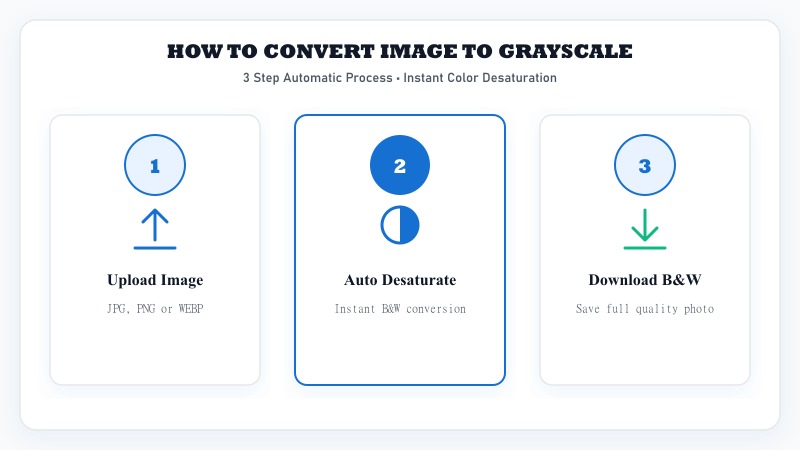
Launch the converter tool online from any device.
Select JPG or PNG photos from your device.
The tool desaturates all color channels automatically.
Inspect the smooth black and white preview.
Save your converted black and white photo.
TECHNICAL TONAL DIFFERENCES
These terms get used interchangeably, but there's actually a subtle technical difference worth knowing. Grayscale means the image is made up entirely of shades of gray, ranging smoothly from black to white based on the brightness of each pixel — it's a full tonal range with many gray values in between. True black and white, technically speaking, means only pure black and pure white pixels, no gray tones at all — more like a stark, high-contrast line drawing.
In everyday conversation, "black and white photo" almost always actually means grayscale — a full range of gray tones, not a two-tone image. When people search for how to make a photo black and white online, they're virtually always looking for a grayscale conversion, which is exactly what this tool produces. If you specifically want the stark, two-tone version instead, that's usually achieved through a separate high-contrast or threshold effect rather than a standard grayscale conversion.
COLOR STRIPPING
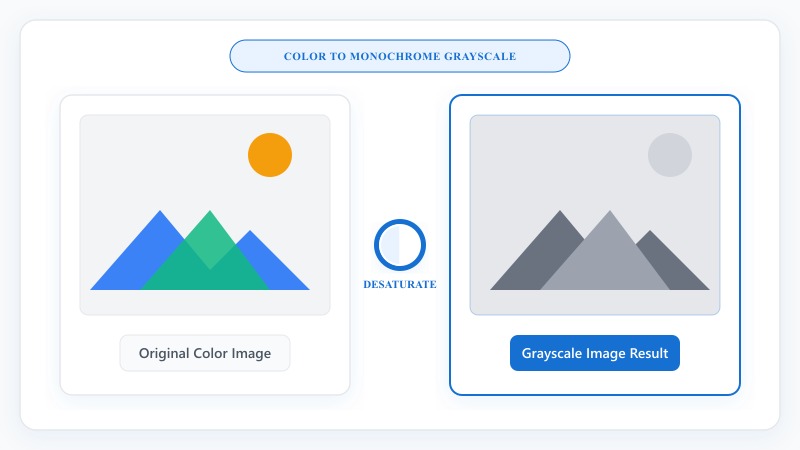
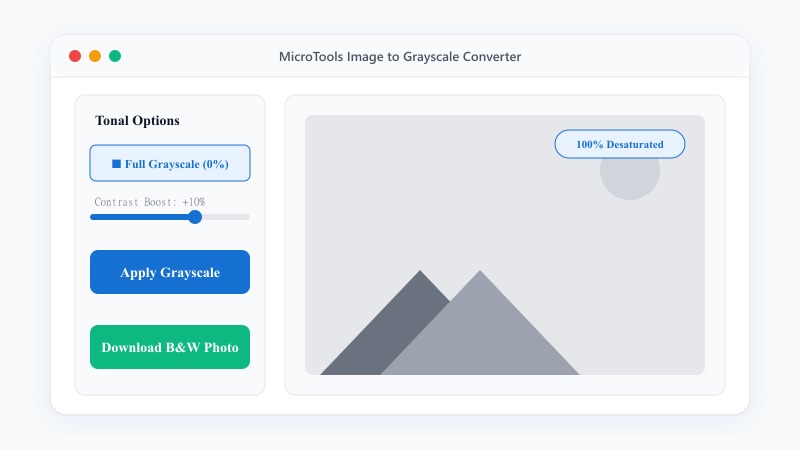
How to remove color from an image is really just another way of describing grayscale conversion — the tool strips out the color (hue and saturation) information from each pixel while keeping brightness intact, which is what produces that smooth range of gray tones rather than an oddly darkened or flattened-looking image.
RETRO MONOCHROME AESTHETIC
How to create a vintage black and white photo: a straight grayscale conversion gets you most of the way there, but true vintage-style black and white often includes a bit of added contrast and sometimes a subtle warm or cool tint layered back in (sepia-toned black and white photos are a classic example). A plain grayscale conversion is the foundation — from there, adjusting contrast slightly can push the look further toward that classic, aged photograph feel.
BULK PROCESSING
Handy for keeping an entire set visually consistent instead of converting file by file.
Select multiple photos together instead of one at a time.
The tool desaturates every image to grayscale in one pass.
Download them individually or as a complete batch.
PIXEL PRESERVATION
No — converting to grayscale doesn't compress or degrade your image at all. It's purely a color transformation: each pixel's color data is removed while its brightness value stays intact, so the level of detail and sharpness in the photo is exactly the same as the original, just without hue and saturation.
PRACTICAL USES
FREE & UNLIMITED
REFERENCE MATRIX
| Color Mode | Color Spectrum | Emotional & Visual Feel |
|---|---|---|
| Full RGB / Color | 16.7 million colors | Vibrant, lifelike & realistic |
| Grayscale | 256 shades of gray (Black & White) | Classic, dramatic & timeless |
| High Contrast B&W | Sharp monotone highlights & shadows | Artistic & high impact photography |
Questions and answers
Yes, completely free with no hidden costs.
Grayscale includes a full range of gray tones between black and white; true black and white technically means only pure black and pure white pixels. Most everyday "black and white" photos are actually grayscale.
No, it's a color transformation only — brightness and detail stay exactly the same.
Yes, both formats are supported.
Yes, batch conversion is supported for handling several images together.
No, everything happens online without installing any software.
Yes, files are processed securely and aren't stored or shared afterward.