How to Compress & Convert Images Without Losing Quality in 2026
Learn practical, verifiable techniques to resize, compress, and convert web images into WebP and AVIF without sacrificing visual clarity.
Read guideFREE ONLINE IMAGE RESIZER
Processing: Server-processed (Encrypted HTTPS)TOOL OVERVIEW
Every platform seems to want a different image size. Your website wants one dimension, Instagram wants another, and that photo straight from your phone is way too big for either. Manually resizing images without squishing them out of shape or accidentally cropping the wrong part is one of those small tasks that eats more time than it should. This tool fixes that — resize by exact pixels, percentage, or straight to the right size for whichever platform you're posting on, all for free.
TECHNICAL SPECIFICATIONS & LIMITS
Below are the verified technical parameters, batch limits, and processing details for Social Media Resize:
| Specification | Technical Behavior |
|---|---|
| Processing Architecture | Server-processed via encrypted HTTPS API (ephemeral memory, deleted within 30 minutes) |
| Accepted Input Formats | JPG, JPEG, PNG, WEBP |
| Output Format | Preserves source image format (JPG, PNG, or WebP) |
| Batch Processing Limit | 10 files per batch |
| Configurable Parameters | Preset (instagram_post, instagram_story, instagram_portrait, facebook_post, facebook_cover, twitter_post…); Output format (jpeg, png, webp) |
| Transparency / Alpha Handling | Preserved when output format supports alpha (PNG, WebP, ICO) |
Photos from modern phones and cameras are huge — often 3000+ pixels wide, several megabytes in size. That's great for print, but completely unnecessary for a website, an email attachment, or a social media post. Uploading an oversized image usually means the platform resizes it for you automatically, and not always in a way you'd choose yourself — sometimes it crops awkwardly, sometimes it compresses harder than you'd like.
Resizing it yourself first means you control exactly how it looks. You pick the dimensions, keep the framing you want, and avoid any surprise cropping. It's also just faster to upload and load a properly-sized image instead of forcing a platform to do the work every time.
No Photoshop, no installs — just your browser. Here's how to resize an image to specific pixels:
That covers how to change image dimensions in general, whether you're resizing a JPG, PNG, or most other common formats — the process works the same regardless of file type.
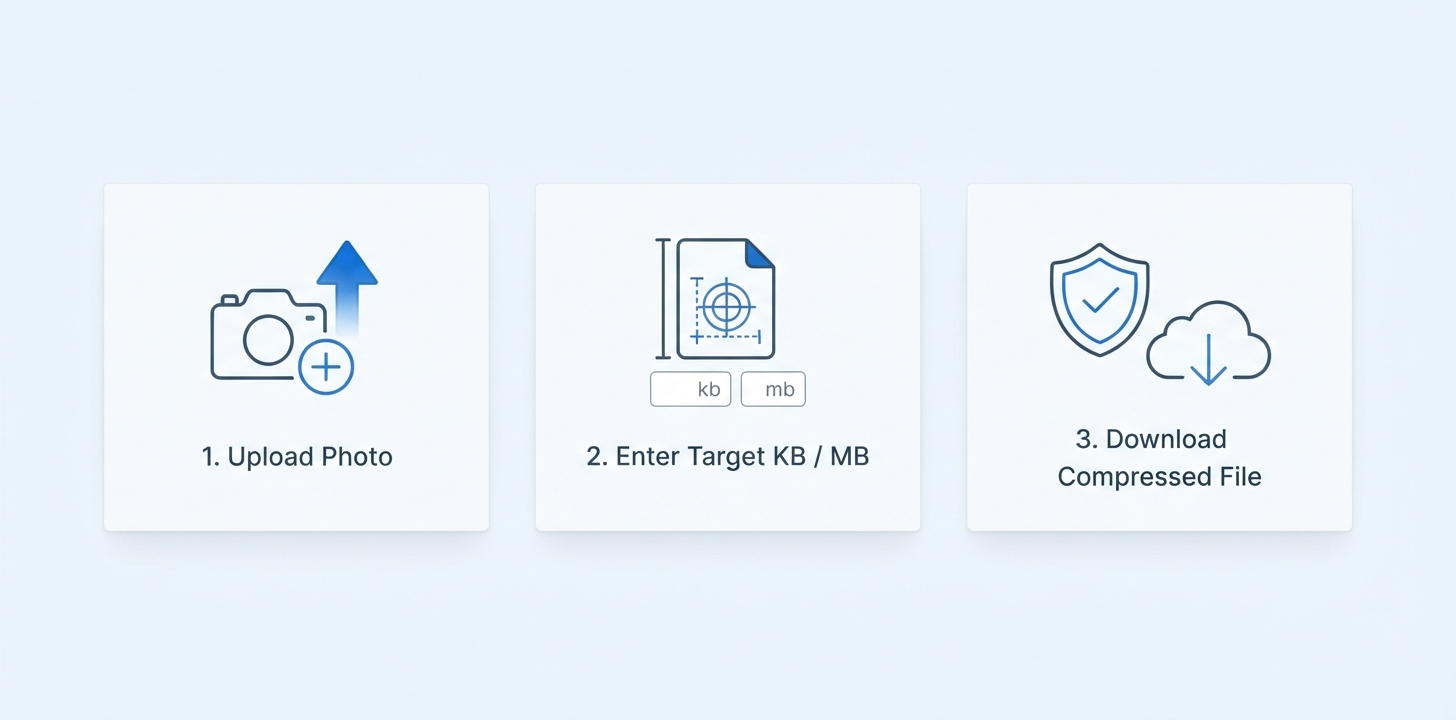
Got a whole folder that needs the same treatment? Here's how to resize multiple images at once:
Handy for prepping a batch of product photos, a folder of blog images, or a set of photos you're about to post across several platforms.
This is where a lot of quick resize jobs go wrong, so let's be specific about each concern:
Every platform has its own preferred dimensions, and posting the wrong size usually means your image gets auto-cropped or squeezed into a shape you didn't intend. Here's a quick reference for common platforms:
To resize for any of these, just enter the target dimensions in the tool the same way you would for a regular resize — there's no separate process, just different numbers depending on where you're posting.
REFERENCE MATRIX
| Social Media Platform | Post Type / Format | Recommended Dimensions (Pixels) | Aspect Ratio |
|---|---|---|---|
| Square Feed Post | 1080 x 1080 px | 1:1 | |
| Story / Reel Cover | 1080 x 1920 px | 9:16 | |
| Feed Image / Shared Link | 1200 x 630 px | 1.91:1 | |
| Feed Update / Article Header | 1200 x 627 px | 1.91:1 | |
| YouTube | Video Thumbnail | 1280 x 720 px | 16:9 |
| Standard Vertical Pin | 1000 x 1500 px | 2:3 |
Questions and answers
Yes, completely free with no hidden costs.
Making an image smaller doesn't hurt quality noticeably; enlarging a small image beyond its original resolution will look softer, since no new detail can be added.
No, resizing changes the overall dimensions without cutting off any part of the image, unless you specifically choose to crop.
Keep aspect ratio locked so width and height scale proportionally together.
Yes, batch resizing is supported for handling several images together.
It varies by platform and post type — see the sizing guide above for Instagram, Facebook, LinkedIn, Pinterest, TikTok, and YouTube.
No, everything happens online without installing any software.
Yes, files are processed securely and aren't stored or shared afterward.