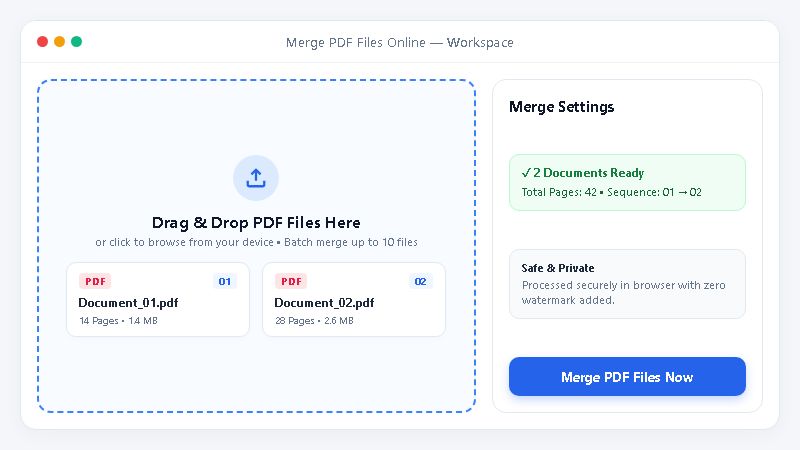
Drag and drop your PDF files
Select the documents from your folder and drop them into the browser workspace.
FREE ONLINE PDF TOOL
Processing: Server-processed (Encrypted HTTPS)TECHNICAL SPECIFICATIONS & LIMITS
Below are the verified technical parameters, batch limits, and processing details for Merge PDF:
| Specification | Technical Behavior |
|---|---|
| Processing Architecture | Server-processed via encrypted HTTPS API (ephemeral memory, deleted within 30 minutes) |
| Accepted Input Formats | |
| Output Format | PDF (.pdf document) |
| Batch Processing Limit | 10 files per batch |
| Configurable Parameters | Automatic preset optimization |
| Transparency / Alpha Handling | Preserved when output format supports alpha (PNG, WebP, ICO) |
ADVANTAGES
When you use this free PDF merger, you control the exact sequence of your files. You can drag and drop documents, review PDF files on screen, and set the order easily. Start combining your PDF files above to simplify your daily paperwork.
ONLINE PDF MERGER
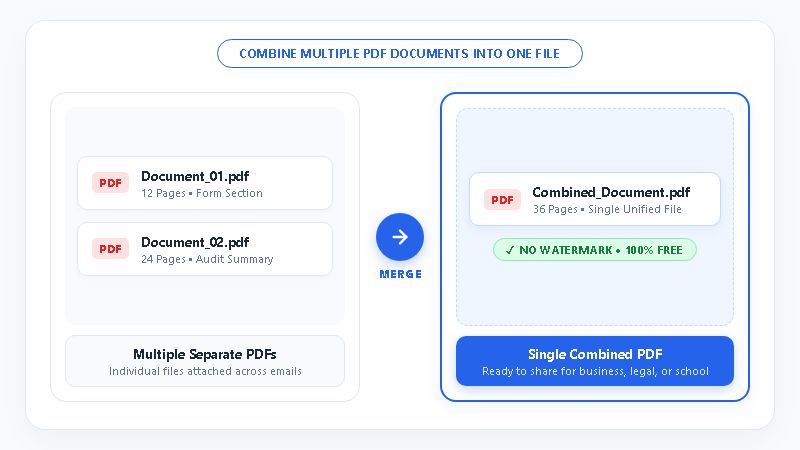
Merge PDF is a free online tool that combines multiple PDF files into one document in four steps. It works online from any modern device for users across America, Australia, the UK, and worldwide. You upload your files, review PDF contents, set the order, and download one combined file.
STEP-BY-STEP GUIDE
You do not need technical skills to combine multiple PDFs into one document. Follow these four steps to merge your files online in seconds.
See our guide to organizing digital office files for more workflow tips.
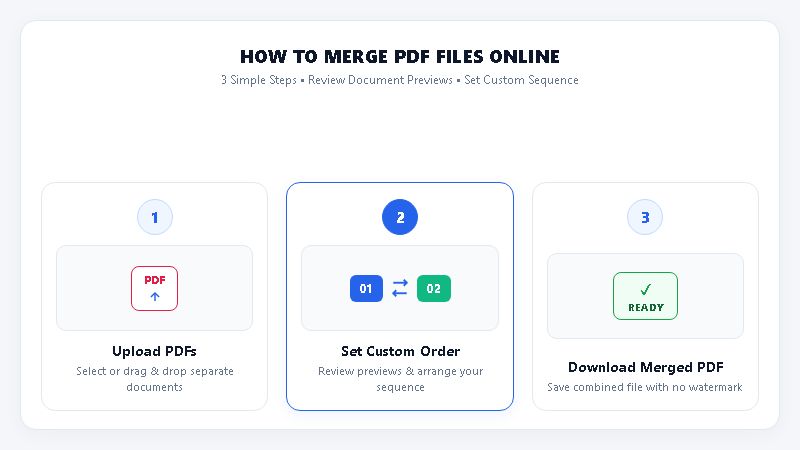
Select the documents from your folder and drop them into the browser workspace.
Check your uploaded documents inside the tool to confirm you selected the right versions.
Move your files into order, such as placing document 1, document 3, and then document 2.
Click merge to join your uploaded files and save the single PDF.
INSPECT & ARRANGE
Many online utilities merge files blindly without letting you check your uploads first. Merge PDF gives you simple features to inspect and arrange every file before combining.
COMPARISON
Using a browser tool to combine PDF files saves time compared to manual office workarounds. Compare how Merge PDF stacks up against manual copying and desktop software below.
| Comparison Factor | Merge PDF Online Tool | Manual Copy and Paste | Installed Desktop Software |
|---|---|---|---|
| Setup Needed | None, works in browser | Requires a text editor | Requires software installation |
| File Upload | Drag and drop files | Open each file manually | Local folder menus |
| Pre Merge Check | Built in Review PDF | Switch between open tabs | Separate preview windows |
| File Ordering | Arrange your files easily | Cut and paste sections | Complex sidebar menus |
| Cost and Access | Free, no signup needed | Free but wastes time | Paid license required |
COMMON SCENARIOS
Professionals and students across America, the UK, and Australia combine PDFs to keep digital paperwork tidy. Review the table below to see how different groups use this tool every day.
You can also read our digital paperwork checklist to organize your team folders.
| User Group | Document Challenge | How Merge PDF Helps | Real Office Scenario |
|---|---|---|---|
| Bankers | Client records sit in separate PDFs | Review PDF files and set the order | Combining loan forms and disclosures into one file |
| Students | Assignments have separate cover and essay files | Drag and drop sections into one submission | Joining a title page, report, and reference list |
| Corporate Sectors | Department updates arrive as separate files | Arrange your files to match the agenda | Bundling finance, legal, and sales summaries for executives |
| Offices | Vendor invoices pile up as individual files | Combine documents in browser with no watermark | Grouping weekly bills into one monthly accounting packet |
NO SIGNUP REQUIRED
Some tools advertise free merging but lock your download behind an account registration wall. Others stamp a distracting logo across your document unless you pay for a subscription.
With Merge PDF, you can merge PDF files online for free with no signup required. The tool never adds a watermark, so your finished document looks clean for school or business. You can open the tool online and combine your files immediately.
PRACTICAL HABITS
Follow these practical habits when you combine PDF files online:
GET STARTED
Stop sending cluttered emails with separate attachments. Use our Merge PDF Files Online, Free PDF Merger to drag and drop files, review PDF documents, and set your order. Try Merge PDF now and download your combined file for free.
For more document tips, visit our PDF workflow guide.
Questions and answers
Open Merge PDF right online from any modern device. Drag and drop your separate PDF files into the tool workspace. Next, review PDF documents on screen and arrange your files in your preferred sequence. Click the merge button to join the files and download your single combined PDF document.
Yes, Merge PDF is completely free to use online. You do not need to register an account, enter payment details, or start a trial. The tool combines your documents cleanly and never adds a watermark to any file. Your finished PDF is ready to share right away.
You can use Merge PDF without creating an account or sharing personal contact details. Because no signup is required, you never submit your email address, name, or password. You can also review PDF files inside the tool before merging. This helps you confirm that only the right documents are combined.
After you drag and drop your files into the workspace, you can set the order manually. Click and move any uploaded file to change its spot in the queue. For example, you can place document 1 first, document 3 second, and document 2 last. Then click merge to finish.
Yes, Merge PDF includes a built in feature that lets you review PDF files before combining them. After you drag and drop your documents into the browser, you can inspect them right on your screen. Checking your files first helps you catch wrong versions before you create your final PDF.
Yes, you can select several PDF files from your computer folder and drag and drop them into the browser window together. Once uploaded, you can review PDF contents on screen and arrange your files in the right sequence. Then click merge to combine them into one single PDF for free.